USB and keyboard settings#
USB host interface#
USB device type#
Used to select which USB type the device enumerates to the host. After switching the USB device type, the device will automatically reset and emit a standard power-on beep.
Available device types include:
SNAPI with Imaging Interface, default valueSNAPI without Imaging InterfaceHID Keyboard EmulationIBM Table Top USBIBM Hand-Held USBUSB OPOS Hand-HeldSimple COM Port EmulationUSB CDC HostSSI over USB CDC

* SNAPI with image interface#

SNAPI does not have a graphical interface#

HID keyboard emulation#

IBM Desktop USB#

IBM Handheld USB#

USB OPOS handheld#
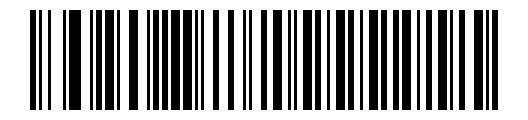
Simple COM port emulation#

USB CDC host#

SSI over USB CDC#
Note
The host should install the CDC INF file before selecting USB CDC Host, otherwise the device may hang on power-on enumeration. SSI over USB CDC only provides a subset of the SSI protocol and does not include hardware handshake functionality.
USB Static CDC#
Used to control the COM port allocation method when multiple devices are connected.
Enable USB Static CDC, default valueDisable USB Static CDC

* Enable USB Static CDC#

Disable USB Static CDC#
After enabling, multiple devices can reuse the same COM port; after disabling, each connected device will occupy a new COM port number.
USB polling interval#
Used to set the interval at which the host polls the device in USB HID keyboard mode. The smaller the value, the faster the data transfer.
Available values include:
1 msec2 msec3 msec4 msec5 msec6 msec7 msec8 msec, default value9 msec

1 msec#

2 msec#

3 msec#

4 msec#

5 msec#

6 msec#
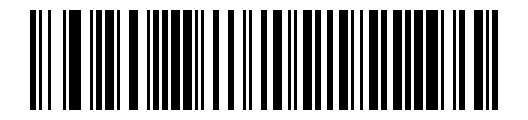
7 msec#

\* 8 msec#

9 msec#
Warning
The device will reinitialize after the polling interval is changed. If the host cannot handle data rates that are too fast, data loss may result.
USB interface default value#
The first default values for the USB interface are as follows:
Parameter |
Default Value |
|---|---|
USB Device Type |
|
SNAPI Status Handshaking |
|
USB Country Keyboard Types |
|
USB Keystroke Delay |
|
Simulated Caps Lock |
|
USB CAPS Lock Override |
|
USB Ignore Unknown Characters |
|
USB Convert Unknown to Code 39 |
|
USB Ignore Beep Directive |
|
USB Ignore Type Directive |
|
Emulate Keypad |
|
Emulate Keypad with Leading Zero |
|
USB FN1 Substitution |
|
Function Key Mapping |
|
Convert Case |
|
USB Static CDC |
|
USB Polling Interval |
|
Quick Keypad Emulation |
|
USB keyboard output#
Used to illustrate the basic behavior and supporting parameters in USB HID Keyboard Emulation mode. Settings such as national keyboard layout, Caps Lock compatibility, and prefix and suffix ASCII tables only take effect in this mode.
USB keyboard FN1 replacement#
Applies to USB HID Keyboard Emulation only. When enabled, replaces FN1 characters in EAN 128 barcodes with user-defined key categories and values.
EnableDisable, default value

Enable USB keyboard FN1 replacement#
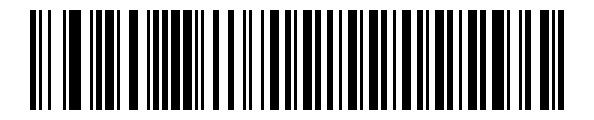
* Disable USB keyboard FN1 replacement#
USB ASCII character set#
Used to describe the encoding mapping of prefixes, suffixes, and control characters in USB mode.
Key points:
This section corresponds to
Table 8-2 USB Prefix/Suffix ValuesMapping covers
1000to1126The table also gives
Full ASCII,Code 39 Encode CharacterandKeystrokeWhen
Function Key Mappingis enabled, bold keys in the table replace the standard mappings
Convert USB unknown characters to Code 39#
Applies only to IBM hand-held, IBM tabletop, and OPOS devices.
Disable Convert Unknown to Code 39, default valueEnable Convert Unknown to Code 39

* Disable conversion of unknown characters to Code 39#

Enable unknown character conversion to Code 39#
Used to control whether to convert unknown barcode type data to Code 39 output when encountering it.
USB ignores unknown characters#
Applies to HID Keyboard Emulation and IBM devices.
Send Bar Codes with Unknown Characters (Transmit), default valueDo Not Send Bar Codes with Unknown Characters (Disable)

* Send data containing unknown characters#

Do not send data containing unknown characters#
When sending is enabled, the device will ignore unknown characters but continue to send other data; when disabled, the IBM device will prevent the entire barcode from being sent, and the HID Keyboard device will send up to unknown characters and issue an error tone.
USB ignore beep command#
Applies only to IBM hand-held, IBM tabletop, and OPOS devices.
Honor USB Beep Directive, default valueIgnore USB Beep Directive

* Follow USB beep instructions#

Ignore USB beep command#
USB ignore symbology command#
Applies only to IBM hand-held, IBM tabletop, and OPOS devices.
Honor USB Ignore Type Directive, default valueIgnore USB Ignore Type Directive

* Follow USB coding instructions#

Ignore USB symbology commands#
Keyboard layout and character set#
National keyboard layout and Parameter Barcodes#
Used to select a USB keyboard layout for a different country/region, only available in USB HID Keyboard Emulation. After switching the national keyboard layout, the device will automatically reset and issue a standard power-on beep.
Common layouts include:
North American Standard USB Keyboard, default valueGerman WindowsFrench WindowsFrench Canadian Windows 95/98French Canadian Windows 2000/XPFrench Belgian WindowsSpanish WindowsItalian WindowsSwedish WindowsUK English WindowsJapanese Windows (ASCII)Portuguese-Brazilian Windows
keyboardlayout |
Parameter Barcode |
|---|---|
* North American Standard USB Keyboard |
|
German Windows |
|
French Windows |
|
French Canadian Windows 95/98 |
|
French Canadian Windows 2000/XP |
|
French Belgian Windows |
|
Spanish Windows |
|
Italian Windows |
|
Swedish Windows |
|
UK English Windows |
|
Japanese Windows (ASCII) |
|
Portuguese-Brazilian Windows |
|
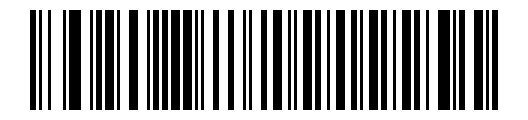
\* North American Standard USB Keyboard#

German Windows#
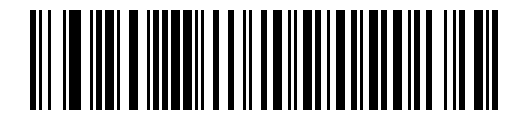
French Windows#

French Canadian Windows 95/98#

French Canadian Windows 2000/XP#

French Belgian Windows#

Spanish Windows#

Italian Windows#
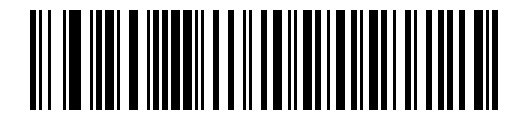
Swedish Windows#

UK English Windows#

Japanese Windows (ASCII)#

Portuguese-Brazilian Windows#
ASCII character set#
ASCII mapping table used to describe USB keyboard output. This section corresponds to Table 8-2 USB Prefix/Suffix Values and can be used to set prefix, suffix and control characters.
keyboard behavior#
Function key mapping#
Used to control whether the value of ASCII < 32 is sent according to the function key map instead of the standard control key sequence.
Disable Function Key Mapping, default valueEnable Function Key Mapping

* Disable function key mapping#
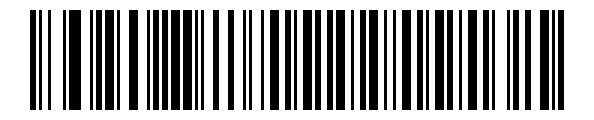
Enable function key mapping#
Simulate keypad#
Used to send characters as numeric-keypad ASCII sequences.
Disable Keypad Emulation, default valueEnable Keypad Emulation

* Disable keypad emulation#
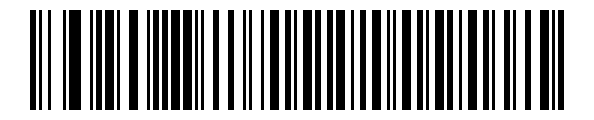
Enable keypad emulation#
Numpad emulation with leading zeros#
Used to add leading zeros when simulating output from the small keyboard, and send it in ISO character mode.
Disable Keypad Emulation with Leading Zero, default valueEnable Keypad Emulation with Leading Zero

* Disable leading zero keypad emulation#
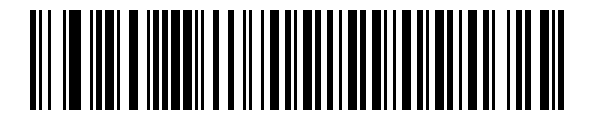
Enable leading zero keypad emulation#
Quick keypad emulation#
Only takes effect when Emulate Keypad is enabled, for faster keypad emulation.
EnableDisable, default value
The compatibility behavior related to the host Caps Lock status during output mainly includes two types of settings: Simulated Caps Lock and USB CAPS Lock Override.
Simulate CAPS LOCK#
Used to invert the uppercase and lowercase characters in the barcode when outputting. The effect is equivalent to the keyboard being turned on Caps Lock, and has nothing to do with the current Caps Lock status of the host.
Disable Simulated Caps Lock, default valueEnable Simulated Caps Lock
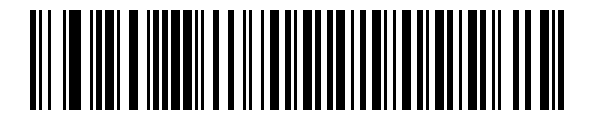
* Disable emulation CAPS LOCK#
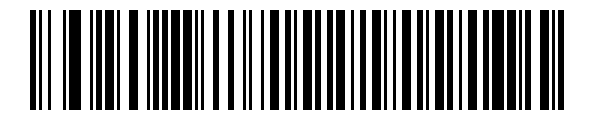
Enable simulated CAPS LOCK#
USB CAPS LOCK coverage#
Applies to HID Keyboard Emulation only. After enabling, you can ignore the host Caps Lock status and output the barcode in its original case.
Override Caps Lock Key (Enable)Do Not Override Caps Lock Key (Disable), default value
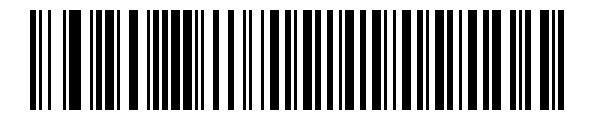
Override Caps Lock state#

* Does not override Caps Lock state#
Note
If both Simulated Caps Lock and Caps Lock Override are enabled, the latter takes precedence. Japanese Windows (ASCII) Under keyboard type, this item is always enabled and cannot be turned off.
Key Delay#
Used to set the time interval between each key press when simulating keyboard output.
No Delay, default valueMedium Delay (20 msec)Long Delay (40 msec)

* No delay#

Medium latency (20 msec)#

Long delay (40 msec)#
SNAPI status handshake#
Used to control whether status handshake is enabled after the USB device type is selected as SNAPI.
Enable SNAPI Status Handshaking, default valueDisable SNAPI Status Handshaking

* Enable SNAPI status handshake#

Disable SNAPI status handshake#
Case Conversion#
Used to uniformly adjust barcode output case.
No Case Conversion, default valueConvert All to Upper CaseConvert All to Lower Case

* Do not convert case#
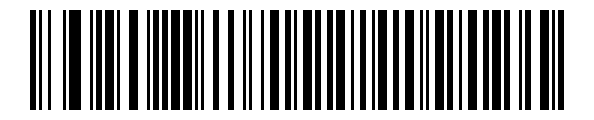
Convert all to uppercase#

Convert all to lowercase#