Keyboard Settings#
Important
On this page, perform settings in the order: Start Setup -> Function Parameter Barcode -> End Setup.
International Keyboard#
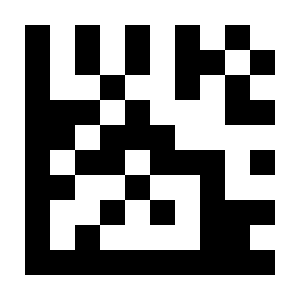
* US# |
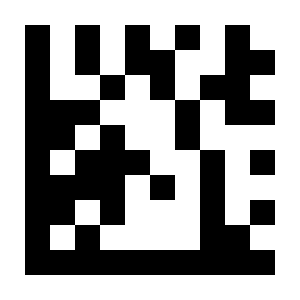
Belgium# |
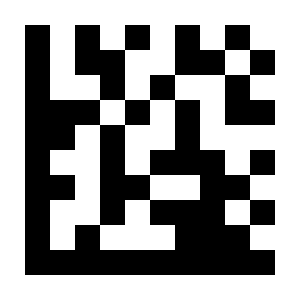
United Kingdom# |
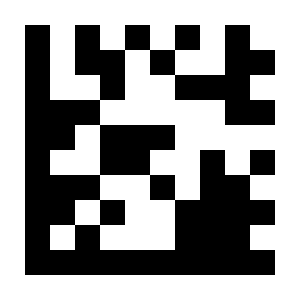
Denmark# |
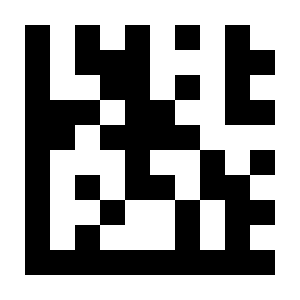
France# |
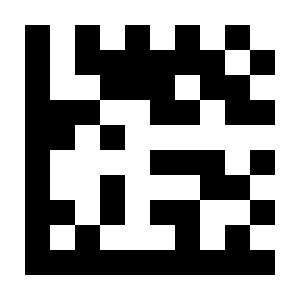
Germany# |
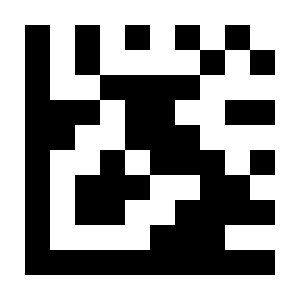
Italy# |
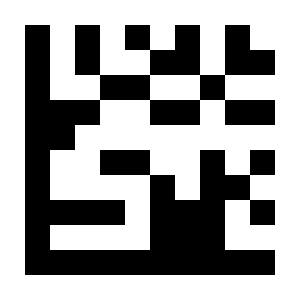
Norway# |
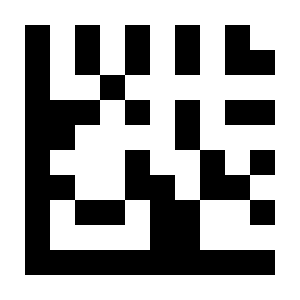
Portugal# |
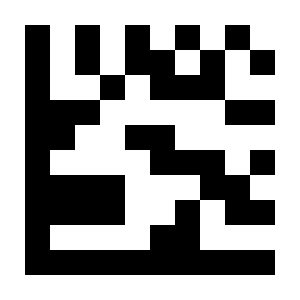
Spain# |
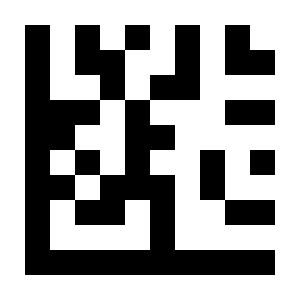
Sweden# |
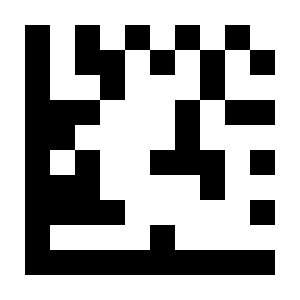
Switzerland# |
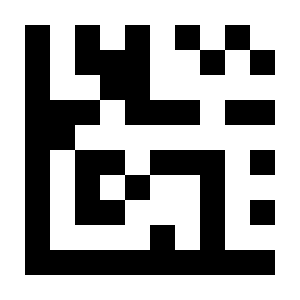
Japan# |
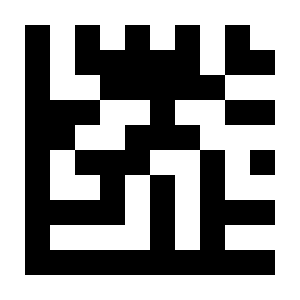
Hungary# |
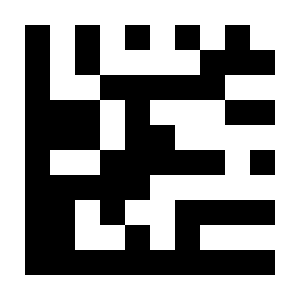
Czech Republic# |
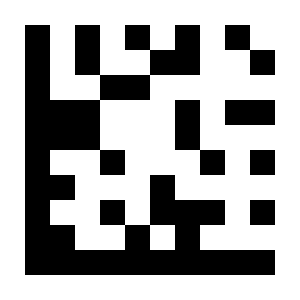
Slovakia# |
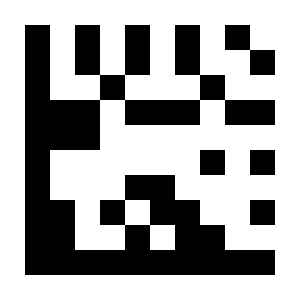
Romania# |
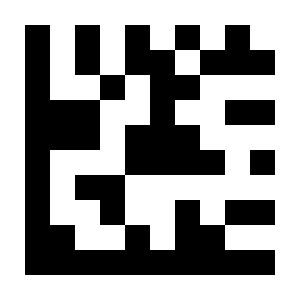
Croatia# |
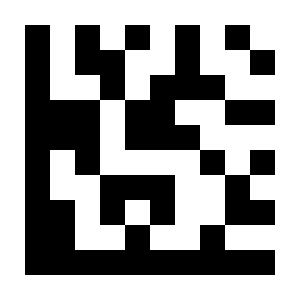
Poland# |
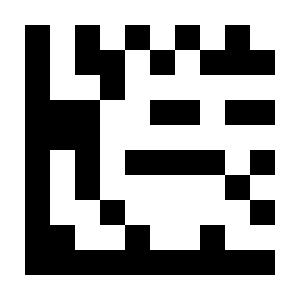
Turkish Q# |
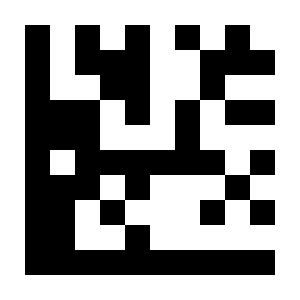
Brazil# |
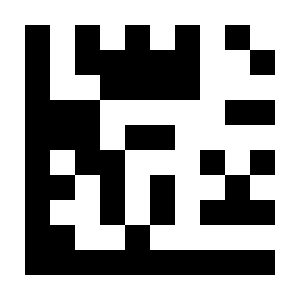
Russia# |
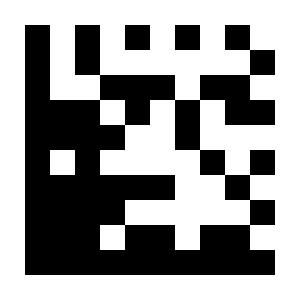
Bulgaria#
QR Keyboard Output#
GB2312 Simplified Chinese
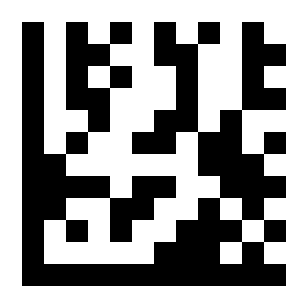
* Notepad, Excel# |

Word Output# |
Universal Multilingual Output (requires plug-in configuration)
UTF-8 - Universal Multilingual Output# |

Code Page / Word Output# |
UTF-8 QR Keyboard Output#

Thailand# |

Russia# |

Bulgaria# |

Turkey# |

Brazil# |

Germany# |

France# |

Italy# |

Spain# |

Portugal# |

Malaysia# |

Indonesia# |
Letter Case Conversion#
* Disable#
Convert to Uppercase# |
Convert to Lowercase# |
Caps Lock#
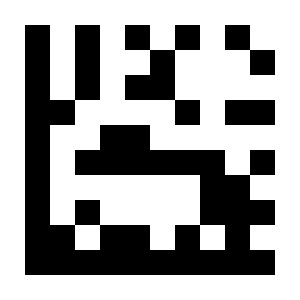
* Disable Caps Lock#
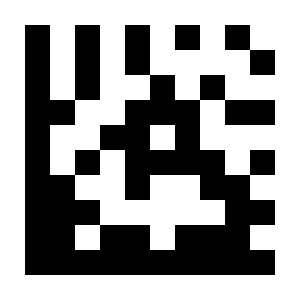
Enable Caps Lock#
GS Character Conversion#
Convert the GS character in keyboard mode to another ASCII code.
Example: Convert the GS character to #.
Scan “Start Setup”.
Scan the “Convert GS Character” Parameter Barcode.
Scan the
#Parameter Barcode in ASCII Code Table.Scan “End Setup”.
Example: Convert the GS character to Enter.
Scan “Start Setup”.
Scan the “Convert GS Character” Parameter Barcode.
Scan the
EnterParameter Barcode in ASCII Code Table.Scan “End Setup”.
Example: Restore the default GS character setting.
Scan “Start Setup”.
Scan the “Disable GS Character Conversion” Parameter Barcode.
Scan “End Setup”.
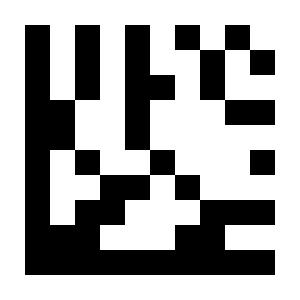
* Disable GS Character Conversion#
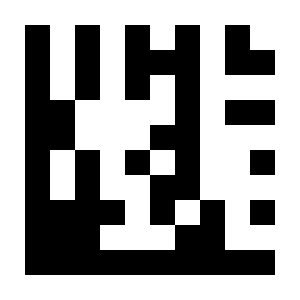
Convert GS Character#
Function Key Mapping#

Disable#
* Enable#
* Ctrl Char Mode#

Alt + Unicode Mode#