Keyboard Settings#
USB Keyboard Settings#
Control Character Escape#
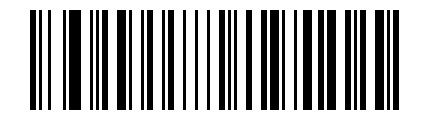
Enable Control Character Escape 1#
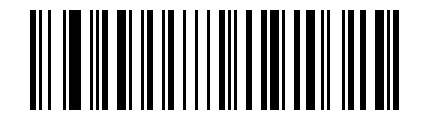
Enable Control Character Escape 2#
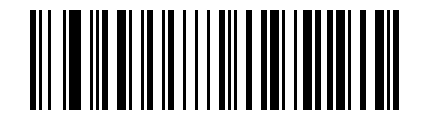
Disable Control Character Escape#
Handling of Carriage Return/Line Feed in Barcode Data (USB Keyboard)#
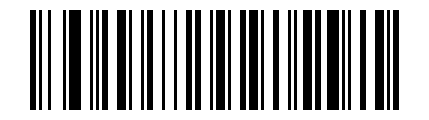
Use Only 0A (LF) as Line Feed#
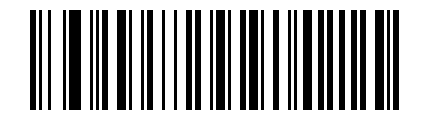
* Use Only 0D (CR) as Line Feed#
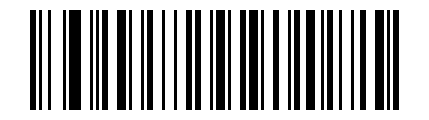
Use Both 0A (LF) and 0D (CR) as Line Feed#
USB Keyboard Output Speed#
Note
Used to configure the output speed in USB keyboard mode. If the host performance is limited, low speed is recommended to ensure reliable transmission.
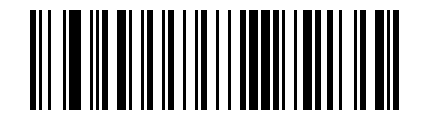
* Low Output Speed#
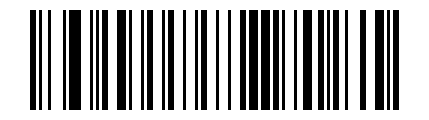
Medium Output Speed#
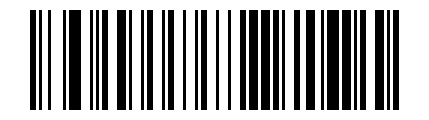
High Output Speed#
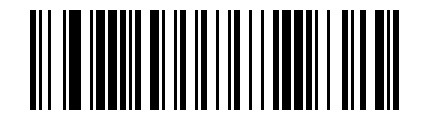
Custom Output Speed (2 ms to 50 ms)#
USB Keyboard Letter Case Control#
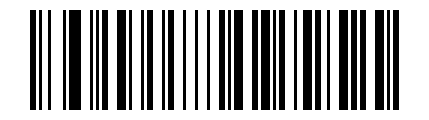
* Normal Output#
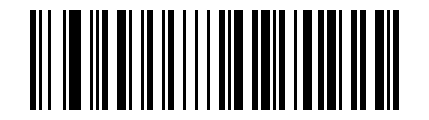
Invert Letter Case#
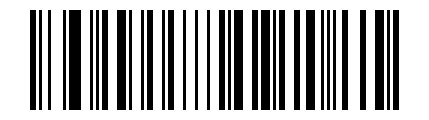
all caps#
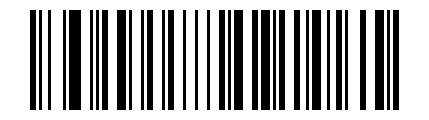
all lowercase#
Keyboard Layout Selection#
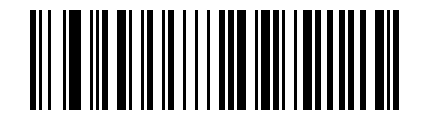
* English (United States)#
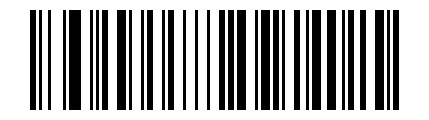
French (France)#
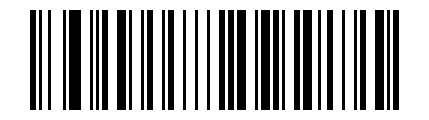
Italian (Italy)#
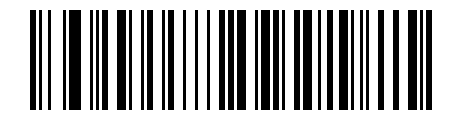
Italian 142 (Italy)#
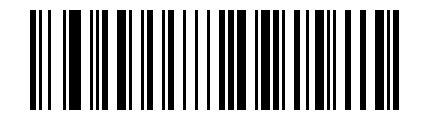
German (Germany)#
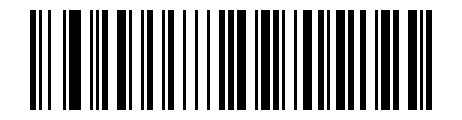
Spanish (Spain)#
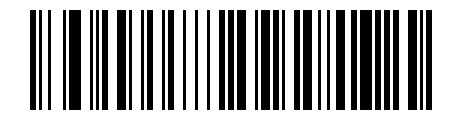
Spanish (Latin America)#
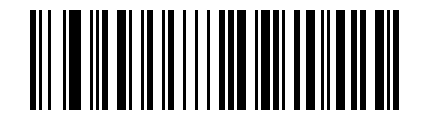
Finnish#
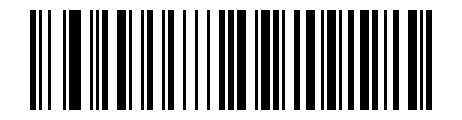
Japanese#
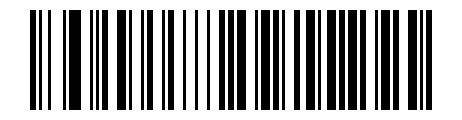
Russian (MS)#
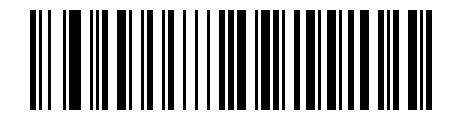
Russian (typewriter)#
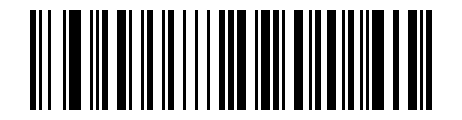
Arabic (101)#
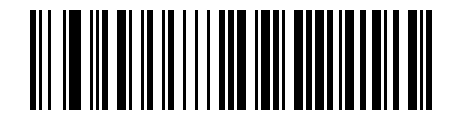
Irish#
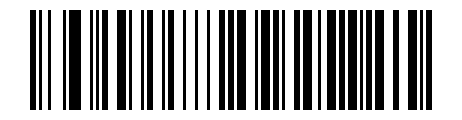
Polish (214)#
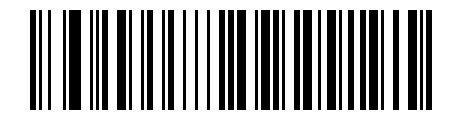
Polish (Programmers)#
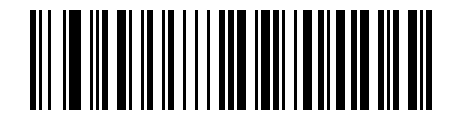
Dutch (Netherlands)#
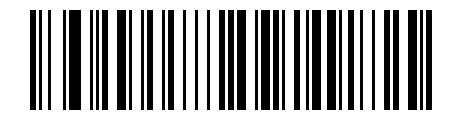
Czech (QWERTZ)#
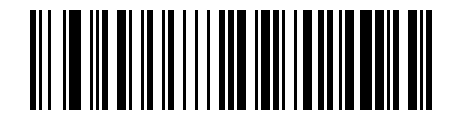
Portuguese (Portugal)#
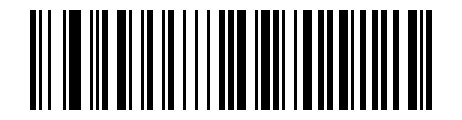
Portuguese (Brazil)#
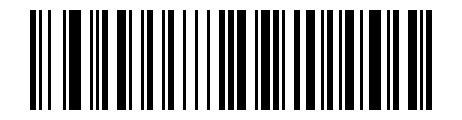
Swedish (Sweden)#
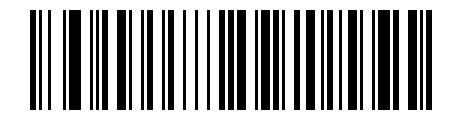
Turkish Q#
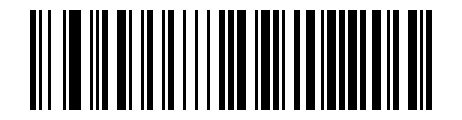
Turkish F#
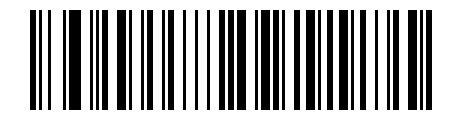
Greek (MS)#
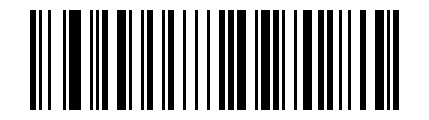
French (Belgium)#
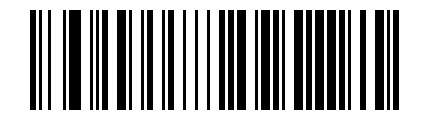
English (UK)#
Virtual Keyboard#
Mode 1: Characters between 0x20 and 0xFF that are not supported in the current keyboard layout are output using the virtual keyboard. Characters between 0x00 and 0x1F are output according to Control Character Set (USB Keyboard Mode).
Mode 2: All characters between 0x20 and 0xFF are output using the virtual keyboard. Characters between 0x00 and 0x1F are output according to Control Character Set (USB Keyboard Mode).
Mode 3: All characters used between 0x00 and 0xFF are output using the virtual keyboard.
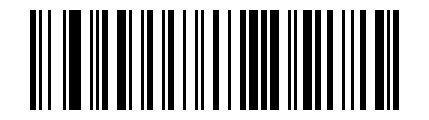
* Virtual Keyboard Disable#
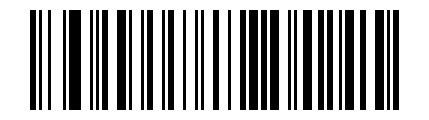
Virtual Keyboard Enable (Mode 1)#
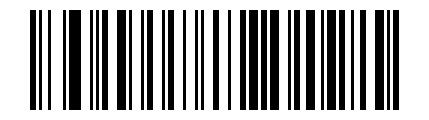
Virtual Keyboard Enable (Mode 2)#
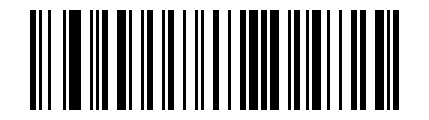
Virtual Keyboard Enable (Mode 3)#
Host Operating System Selection in Virtual Keyboard Mode#
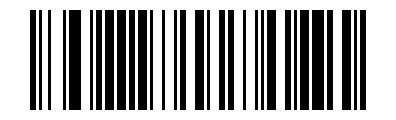
\* WINDOWS#
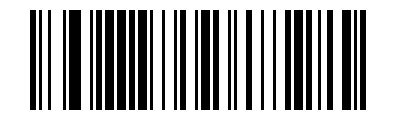
MAC OS#
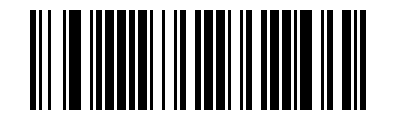
LINUX#
Output Encoding Format#
To output correctly in the specified encoding format, configure the output encoding format accordingly. For example, use GBK for Simplified Chinese output in Notepad/Excel, and Unicode for output in Word.
When the output encoding format is set to English/Latin-1, USB keyboard output is affected by the virtual keyboard switch. When it is set to GBK or Unicode, USB keyboard output is forced to use the virtual keyboard.

* Native Keyboard Output#
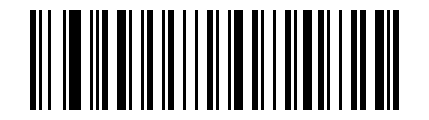
Chinese GBK Encoding (Notepad/Excel)#
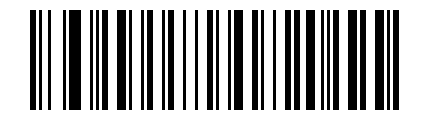
Unicode Encoding (Word)#